Share it. It lands in your inbox.
To-inbox sends links, photos, files and reminders to your own Gmail with a single tap. No account with us, no server, no ads.

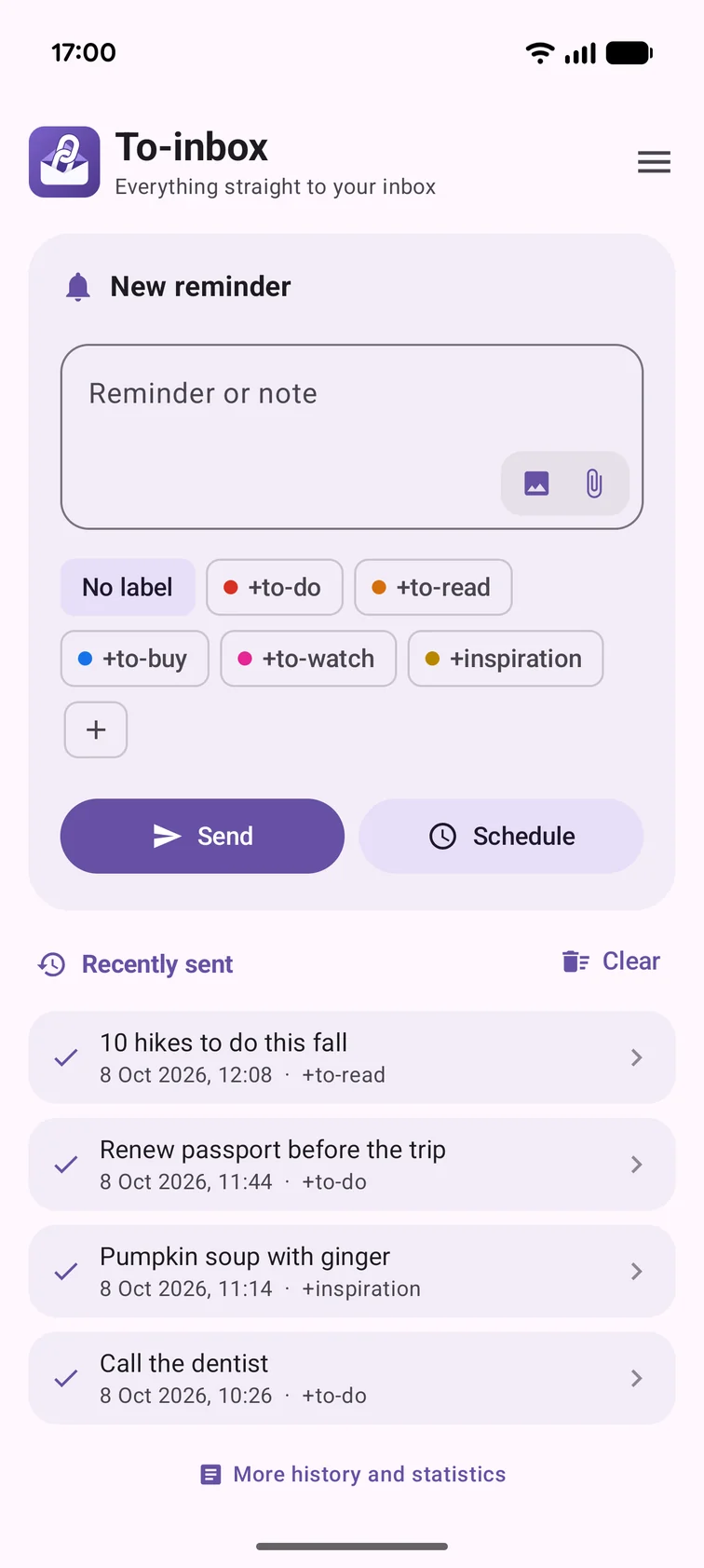
How it works
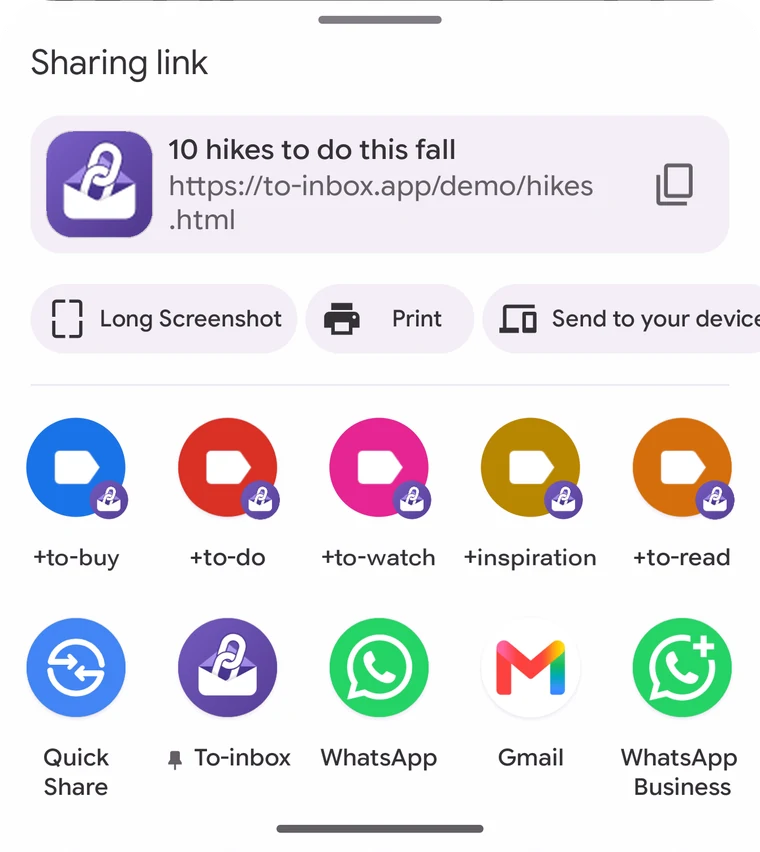
Tap Share
In any app or on any website. Pick To-inbox in the share menu.
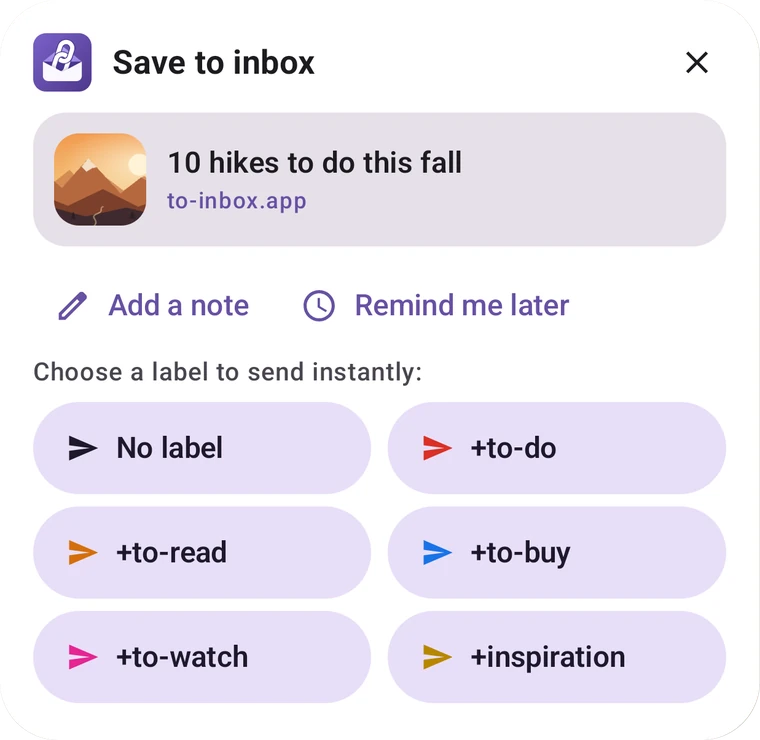
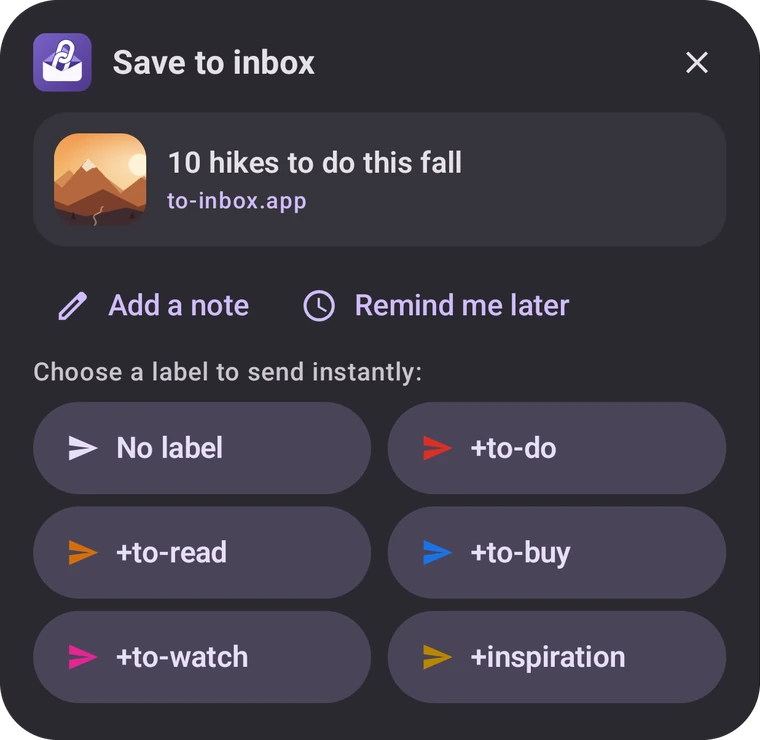
Pick a label
With Pro, add a short note. One tap on a label sends it.
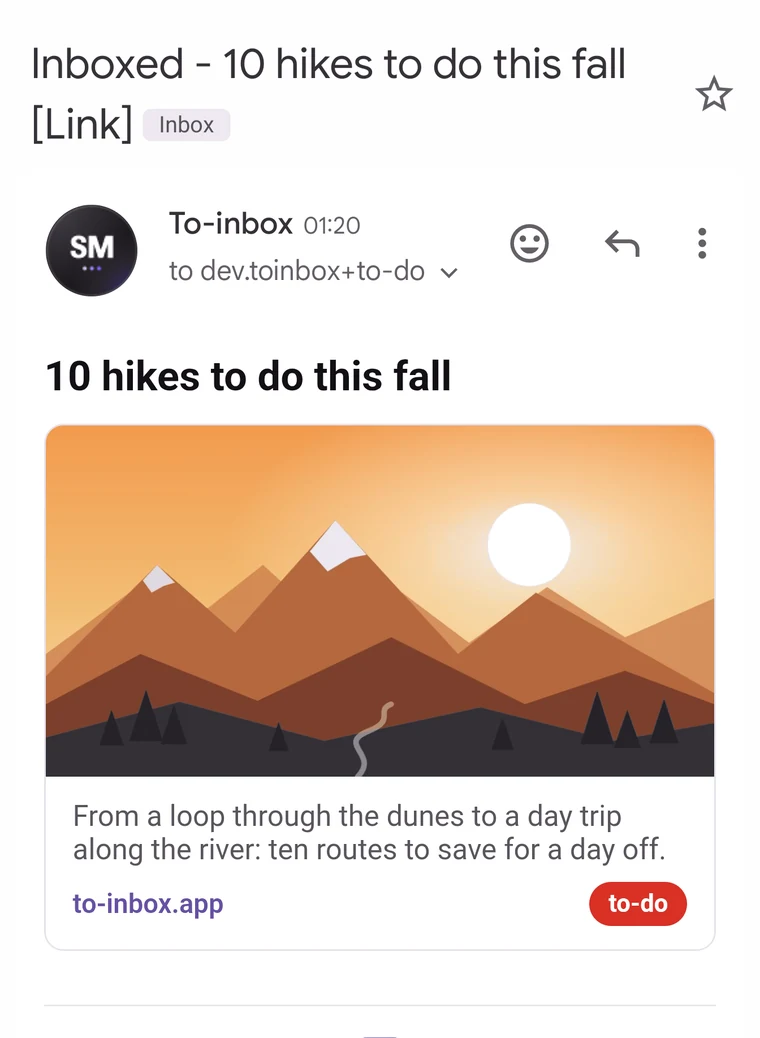
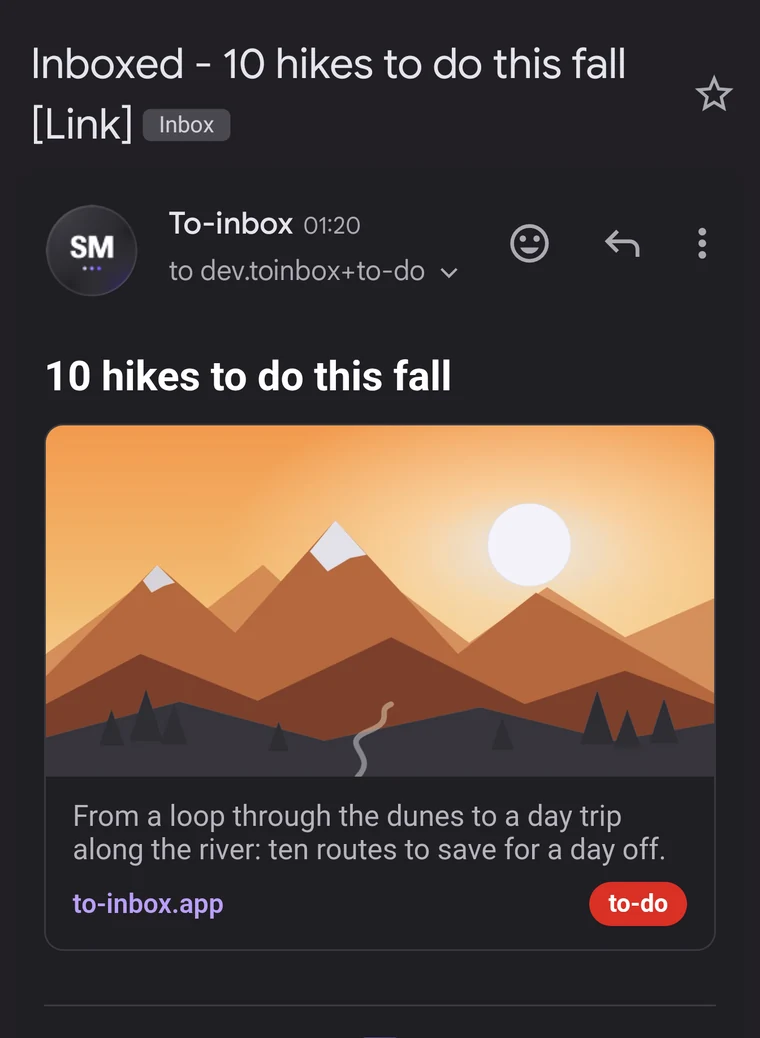
It's in your inbox
With a link preview and label, ready to read or archive.
Everything you find, in one place
Your inbox becomes your collection box. What you share arrives neatly formatted, ready to read, act on or archive.
Share from any app
Links, text, photos, videos and files. Tap Share, pick To-inbox, done. Put your labels at the top of the Android share menu too, with one switch in Preferences.
Share popup or instant send
Pick a label in a compact popup, or skip it and send everything instantly with your default label. With Pro, add a note or have it come back later.
Link previews and screenshots
Title, description and image of the page. No image? You get a screenshot instead. At web shops like Amazon, the product photo.
Reminders
Send now, with a note or photo. See your queue in one overview. With Pro you can schedule them, right from the share menu and even repeating, and get notified once they are sent; tap the notification to open the link. They arrive right on time, even when your phone is locked.
Widget, tile and shortcuts
A widget, a quick settings tile and shortcuts for a new reminder and your first labels.
Labels and smart subject tags
3 labels free, up to 10 with Pro, for Gmail filters. A color and custom subject per label, plus [Link], [Photo] or [Reminder] automatically, also as emoji.
Forward labels Pro
Give every label its own destination. Send +to-do to your Todoist project in one tap, notes to Evernote or ideas to a Trello board, while everything else stays in your Gmail.
History and statistics Pro
Find what you sent earlier, up to 500 items, with a filter by label. See how much you send per label and per type, and which websites you share from most. Without Pro you see your last 5 items.
Backup and restore
New phone? Your labels, preferences and history come along automatically with your phone's Google backup, and signed in with Google you're connected again right away. Prefer to do it yourself? Save them to a backup file.
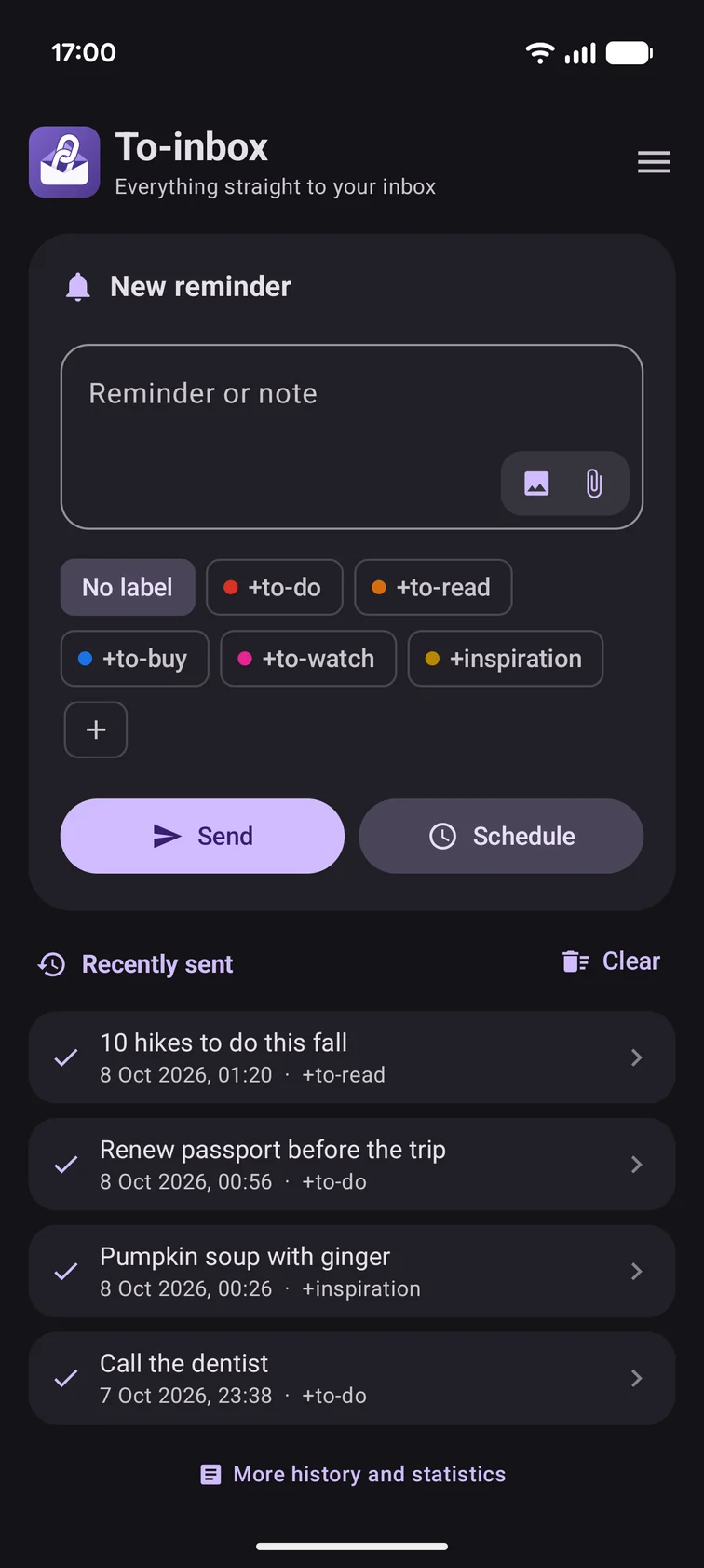
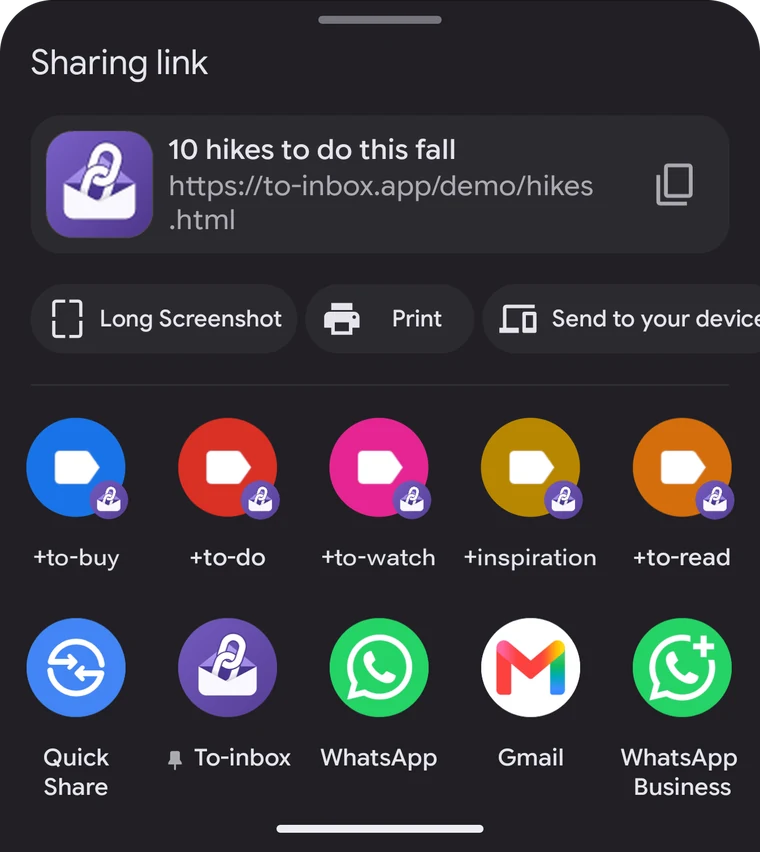
Light, dark and eight languages
An elegant purple theme in light, dark or following your system. In eight languages: Dutch, Flemish, English, Spanish, French, German, Polish and Italian.
Free, with Pro as a bonus
Everything you need day to day is free. Want more labels, labels forwarded to Todoist, Evernote or Trello, scheduled reminders, a note when sharing or your full history? Unlock Pro with a single small, one-time purchase in the app.
Free
- Share from any app, with share popup or instant send
- Link previews and website screenshots
- Send reminders instantly, with a photo
- Widget, tile and shortcuts
- 3 labels, each with its own color and subject
- History: your last 5 sent items
- Backup and restore, eight languages, light and dark
- No ads
To-inbox ProOne-time
- Everything in Free
- Up to 10 labels
- Forward labels to Todoist, Evernote, Trello or any other address
- Scheduled reminders: tonight, in an hour, tomorrow morning, the weekend or any time you choose, even repeating
- Remind me later, also with your own date and time, and your own note, right from the share menu
- History up to 500 items, with search and a label filter, plus statistics
- One-time purchase, no subscription
- Stays active on a new phone with the same Google account (via Restore purchase)
Want to support the developer even more? You can also make a one-off donation in the app via Google Play. A donation is a voluntary contribution and does not unlock Pro.
Your data stays yours
- To-inbox has no server of its own and no accounts. What you share goes straight from your phone to your own Gmail.
- Signing in with Google only asks permission to send email. The app cannot read, delete or manage your messages.
- No ads and no analytics or tracking services in the app. Your settings stay on your device.
Frequently asked questions
Is To-inbox free?
Yes, To-inbox is free to use, without ads. A one-time To-inbox Pro purchase unlocks up to 10 labels (free: 3), label forwarding, scheduled reminders and a note when sharing. No subscription.
Can the app read my email?
No. With Google sign-in the app only asks permission to send email. It cannot read, delete or manage your messages.
Does it work with addresses other than Gmail?
Sending uses a Gmail account, but you can set any email address as the recipient.
What is an app password?
A separate 16-character password you create at myaccount.google.com > Security > App passwords. 2-Step Verification must be on. You can revoke it at any time.
Can I send without the popup?
Yes. Turn on "Auto-send on share" in the app and choose a default label. Shared items then go straight to your inbox in the background.
Does To-inbox also work with Evernote, Todoist or Trello?
Yes. In Account, under "Default recipient", enter that service's own email address (for example your Evernote address, or the email address of a Todoist project or Trello board). To-inbox then sends directly there. If you pick a label, it's automatically added as a hashtag to the subject (for example #to-read), so you can search or filter for it in that service. The regular Gmail labels via plus addressing no longer apply, since those only work when sending to a Gmail address. Want to send only certain labels to such a service and keep the rest in your Gmail? That is what Forward labels in Pro is for.
Can I move my settings to a new phone?
Yes, and usually it happens automatically. If your phone's backup is on, your labels, label settings and preferences come along with the Google backup. Install To-inbox on your new phone and everything is ready right away. Signed in with Google? Then your Gmail connection is back straight away too. For security, an app password is never included: you enter it once more. Prefer to do it yourself? Make a backup file under Menu > Preferences and restore it from the welcome screen.
Can I still change or cancel a scheduled reminder?
Yes. The home screen shows an overview of everything queued up. From there you can send an item right away, change its time or delete it. If you delete one by mistake, you have a few seconds to undo it.
Can a reminder repeat every day or week?
Yes, with To-inbox Pro: when scheduling, choose daily, weekly or monthly. You can get a notification once it has been sent.
Can a label go to a different address, or get its own subject?
Yes. In the app, swipe a label to the left under Labels. A custom subject is free, for example "Read: {title}". You can use {prefix}, {title}, {label}, {date} and {tag}. With Pro you can also choose "Other address" as the destination, for example the email address of a Todoist project, your Evernote address or a Trello board. That way +to-do goes to Todoist while +to-read stays in your Gmail.
What happens if Pro is no longer active?
Pro is a one-time purchase and simply stays active. If a purchase is reversed anyway, for example after a refund, all your labels are kept and you choose which 3 are active. Repeating reminders stop after their last send and forwarded labels go back to your own inbox. Your settings are kept; nothing is lost.
Does a scheduled reminder arrive on time when my phone is locked?
Yes. To-inbox sets an alarm for every scheduled item, so it is sent even when Android is in sleep mode, and sets it again after a restart. With Exactly on time (Menu > Preferences, under Notify for scheduled items, Android 12 and newer) it goes out to the minute; without that permission it can be a few minutes later.
How do I put my labels in the Android share menu?
In Menu > Preferences, turn on Labels in share menu. Your first labels then appear at the top of the share menu (3 by default; under Number of labels in share menu you choose 1 to 5, Android sometimes shows fewer): one tap and it is sent. It is off by default, so you only see the To-inbox icon. A long press on the app icon still shows your labels. On some phones it takes a moment before the share menu updates.
How do I remove recently sent items?
Tap an item for a menu: open the website, copy, resend or remove it. To clear everything at once, tap Clear above the list. Removed one by mistake? Tap Undo.
Where can I find what I sent earlier?
Under Menu > History, or through the link below the recently sent items on the home screen. You see your last 5 sent items; with To-inbox Pro up to 500, with search, a label filter and statistics. The history is stored only on your device and is included in your phone's backup. You can clear it at the bottom with Clear history; your emails in Gmail stay where they are.
Why is my item only sent once I open the app?
Your phone is holding back sending in the background. Usually Data Saver is on: on mobile data an app may then only go online once you open it. Go to Settings > Apps > To-inbox > Mobile data and Wi-Fi and turn on Unrestricted mobile data usage. If battery usage for To-inbox is set to Restricted, choose Optimized or Unrestricted. The app warns you about this on the home screen, with a button to the right setting.
What if I'm offline?
The app waits and sends the message automatically as soon as you're back online. If it still fails after a few attempts, it shows up on the home screen under Not sent, where you can retry with one tap.
Contact
Question, idea or problem? You'll get a reply at the email address you enter.
Tip: in the app, Menu > Help > Report a problem includes your app version and device info automatically.