Hand out codes one at a time. Never the same one twice.
CodeGiver keeps your promo codes, vouchers and license keys in lists. One tap gives you the next code, wrapped in your own message and ready to copy or share.

Three steps
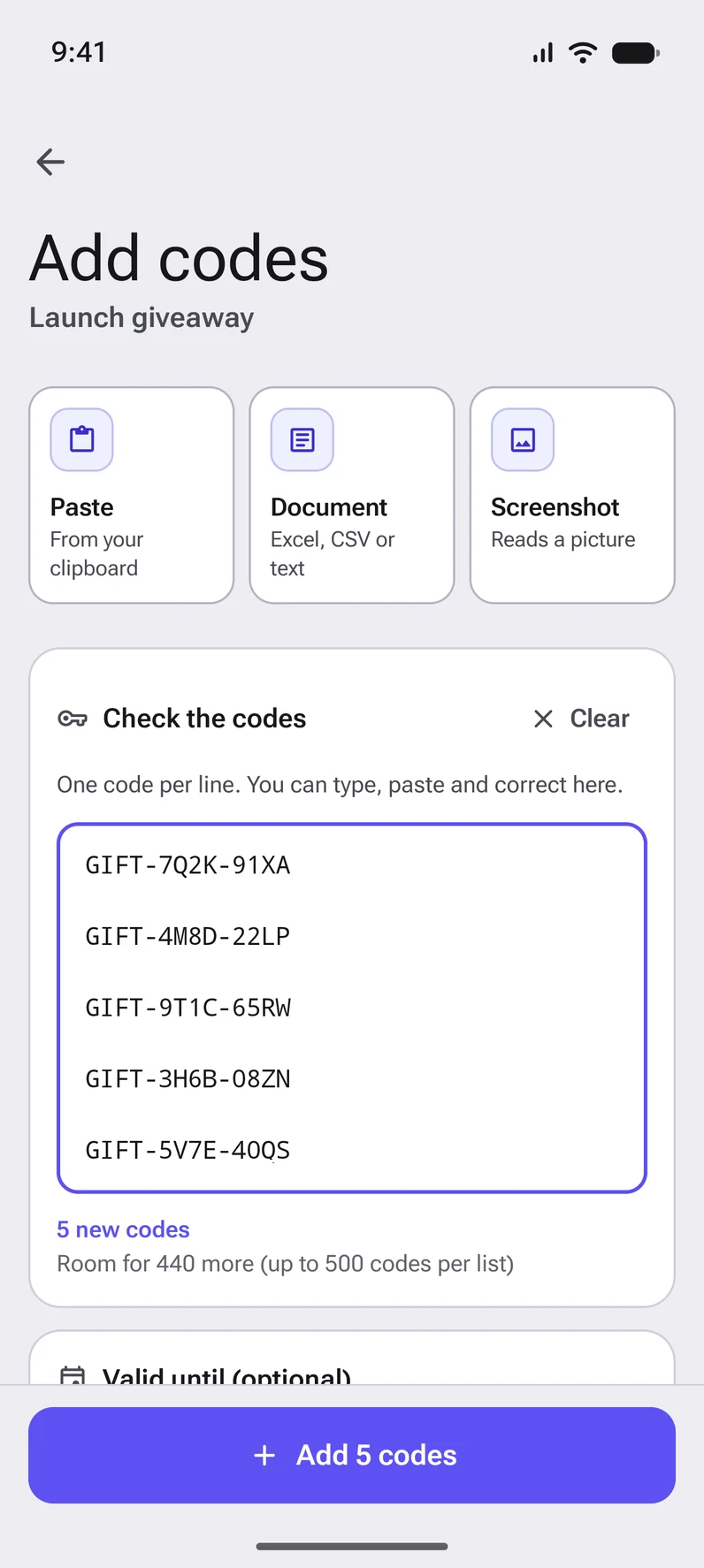
Add your codes
Paste them, pick a document or use a screenshot. Check them, choose an end date if they expire, and add them to a list.
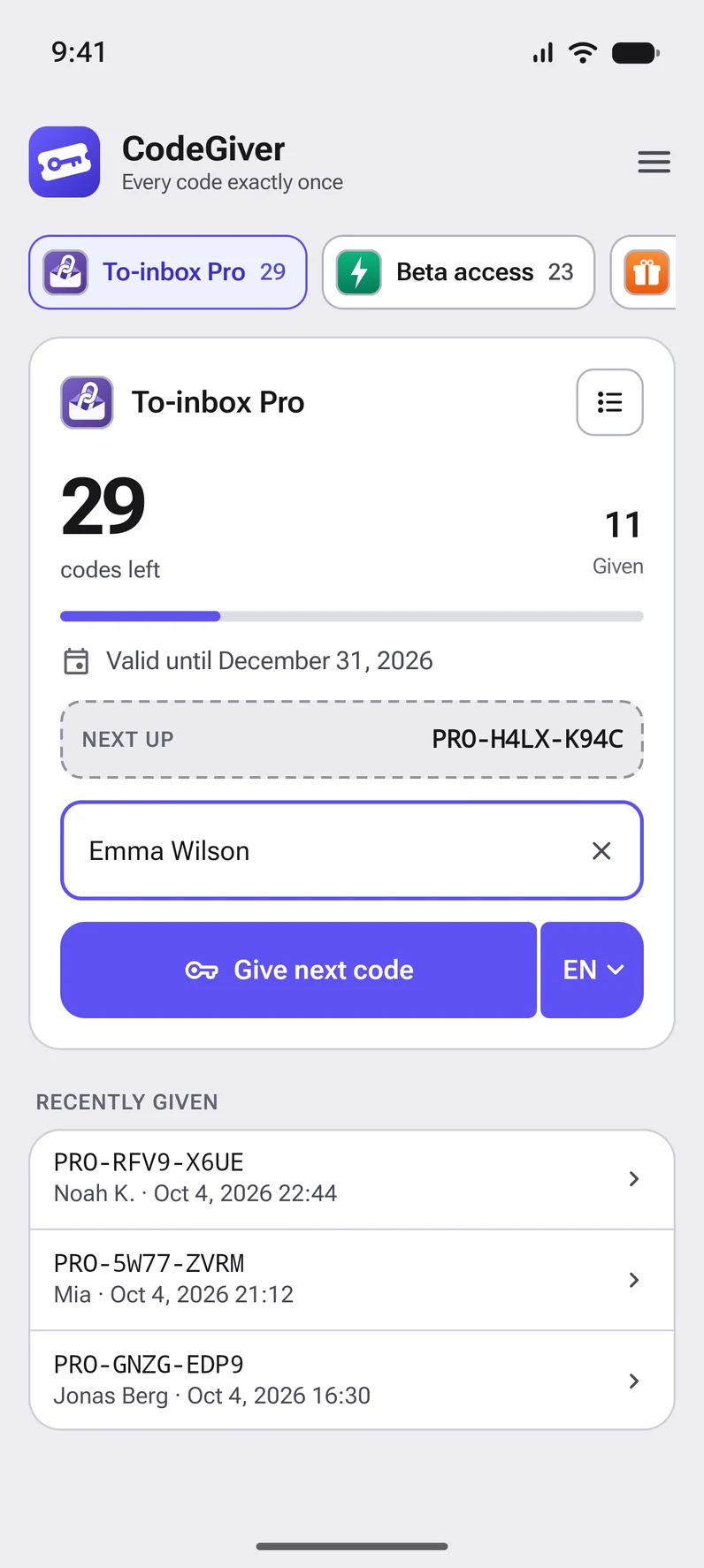
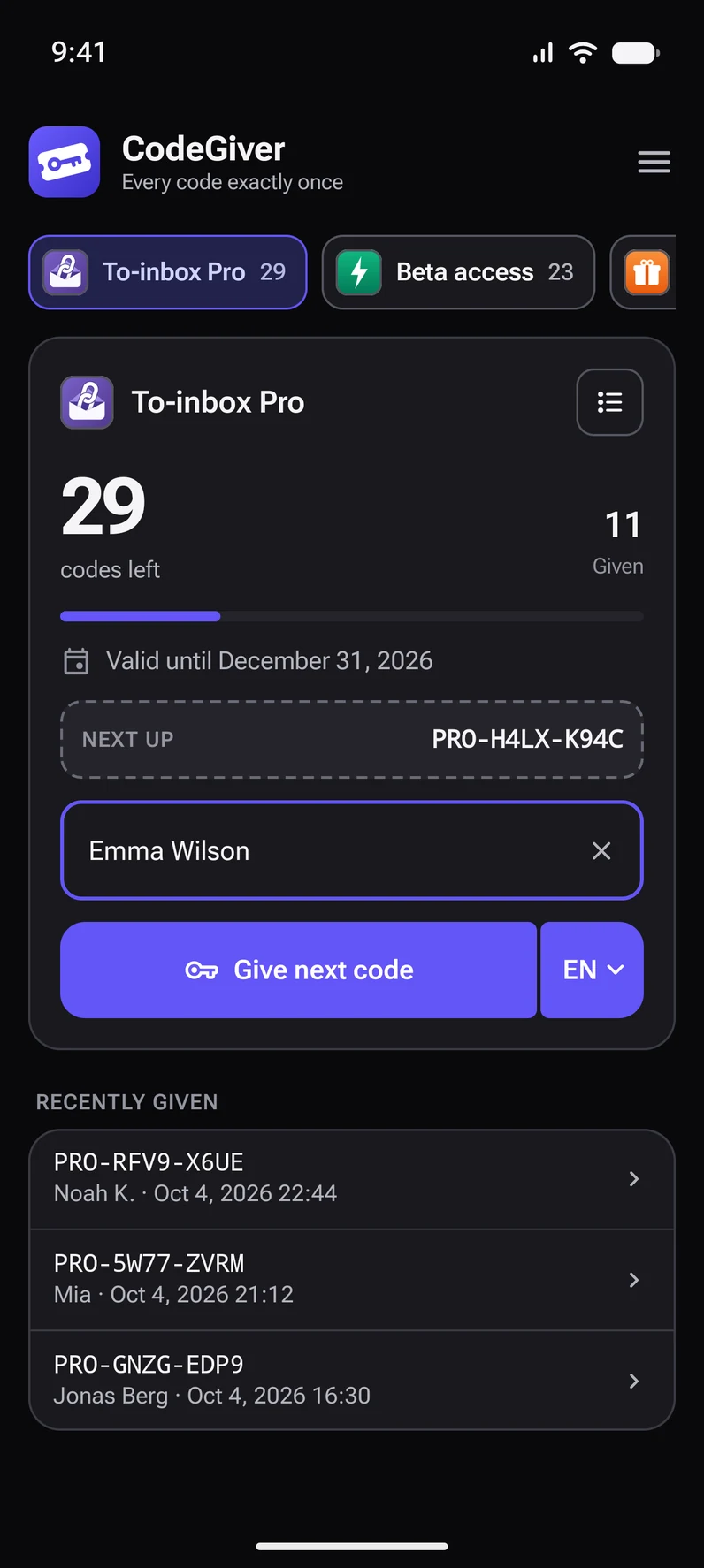
Give the next one
You see how many codes are left and which one is next. Type who it is for, if you like, and tap the button.
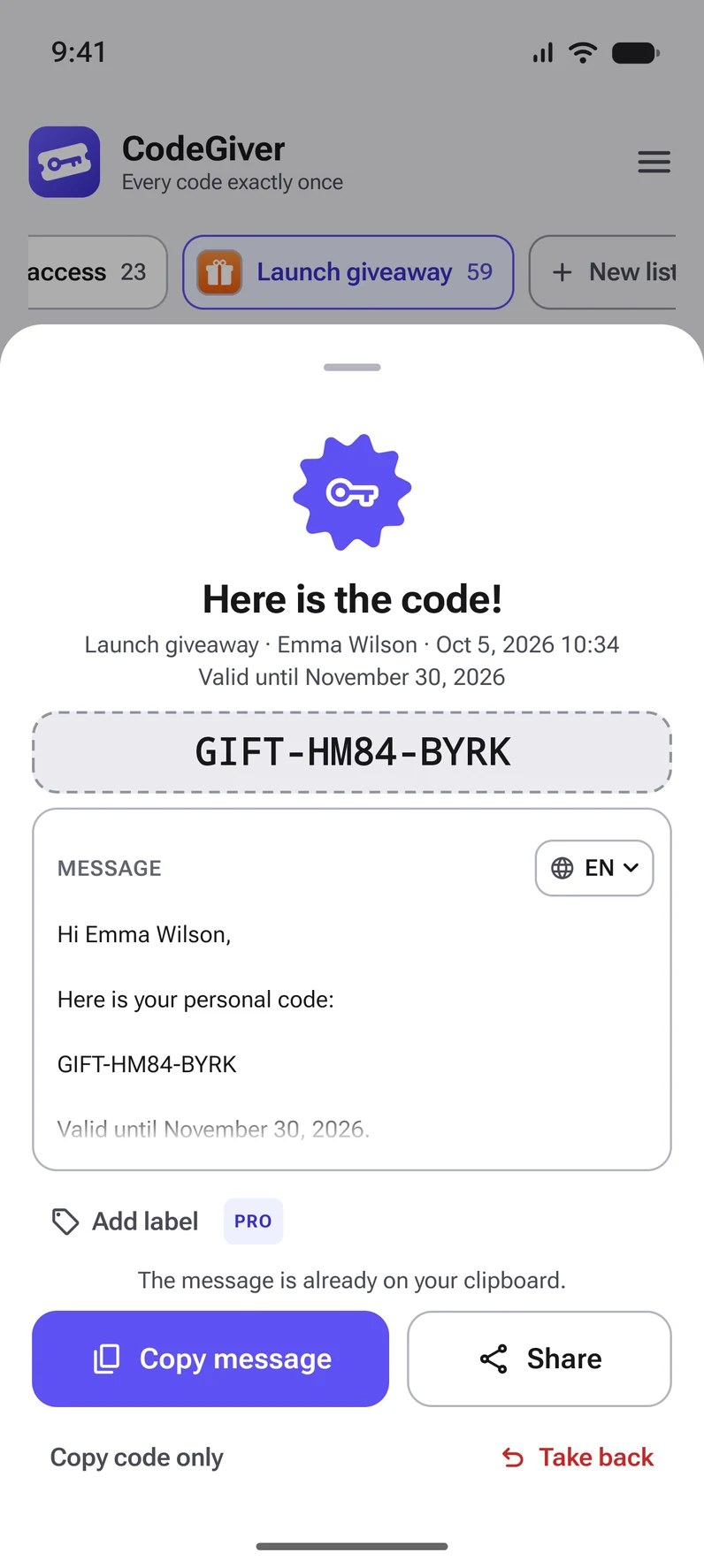
Share the message
The code appears inside your own message, already on the clipboard. Paste it into a chat, a mail or a direct message.
Everything you need to hand out codes without mix-ups
One tap, next code
The first code in the queue goes out with your message around it, and the message is copied right away.
Never twice
Every code is given out exactly once. Adding a code again that was already handed out does nothing.
Take it back
Tapped by mistake? Take the code back and it returns to its place in the queue.
A list per project
Separate lists for each app or campaign, each with its own icon, its own message and links to your website and store page.
Paste, document or screenshot
Paste your codes, read them from Excel, CSV or text, or let the app recognize them in a screenshot.
Valid until
Give a set of codes an end date, when you add them or later. You see per list how long the codes are still valid, the date appears in your message and expired codes are skipped.
Log and export
Everything that happens is logged: given, taken back, added. Filter it, share it or save it as CSV.
Backup
Save everything to a file, or let it travel with the backup of your Google account to a new phone.
A heads-up in time
Get a notification when a list is running low or when codes are about to expire.
Widget and quick tile
Give the next code straight from your home screen or Quick Settings, without opening the app.
App lock
Lock the app with your fingerprint, face or screen lock, so your codes stay out of sight.
Light, dark, your color
A calm interface in light and dark, with an accent color you choose. In English, Dutch, Spanish, German and French.
Always know where you stand
The queue, the log and the numbers: everything you hand out stays easy to find.
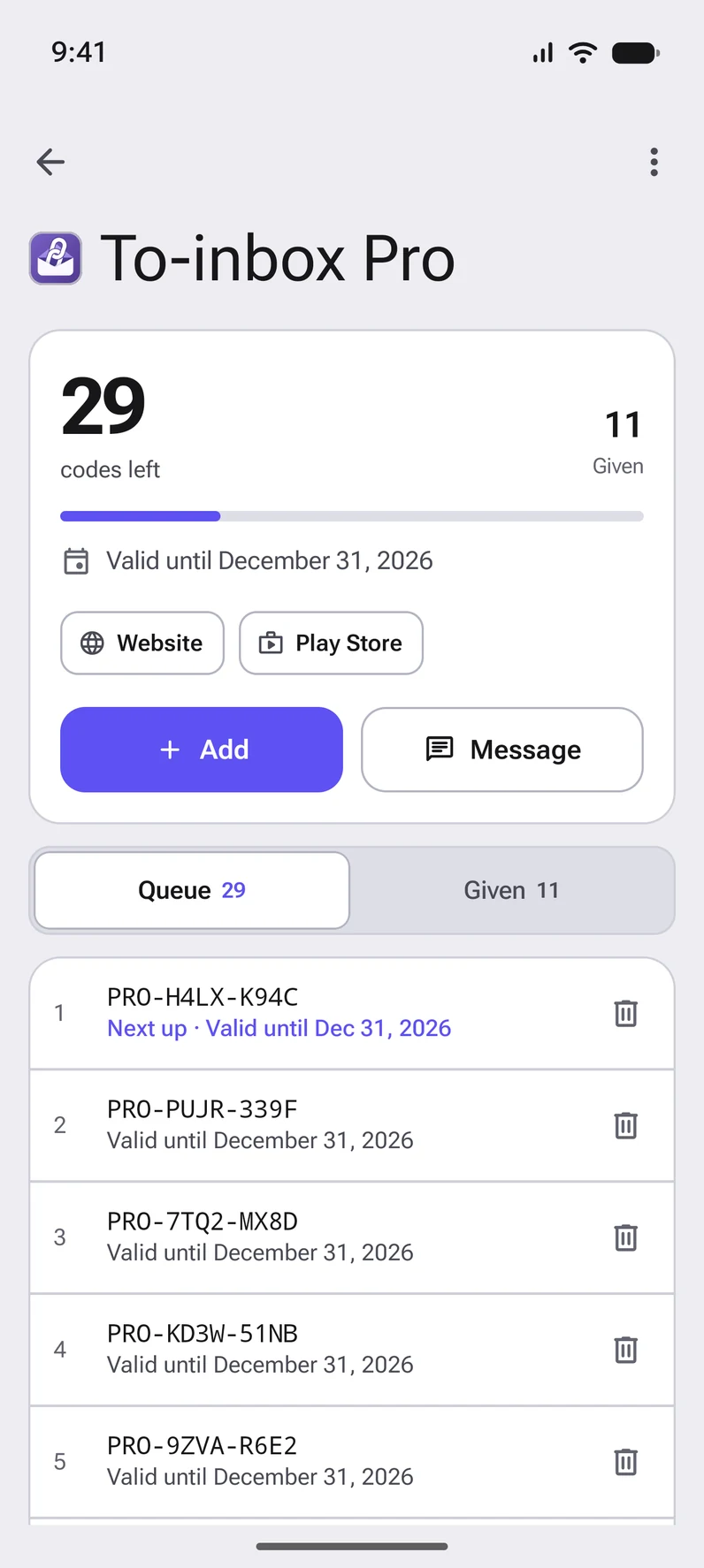
The queue in view
See which code is next, until when the codes are valid and what has already been given. Remove a code from the queue or add new ones.
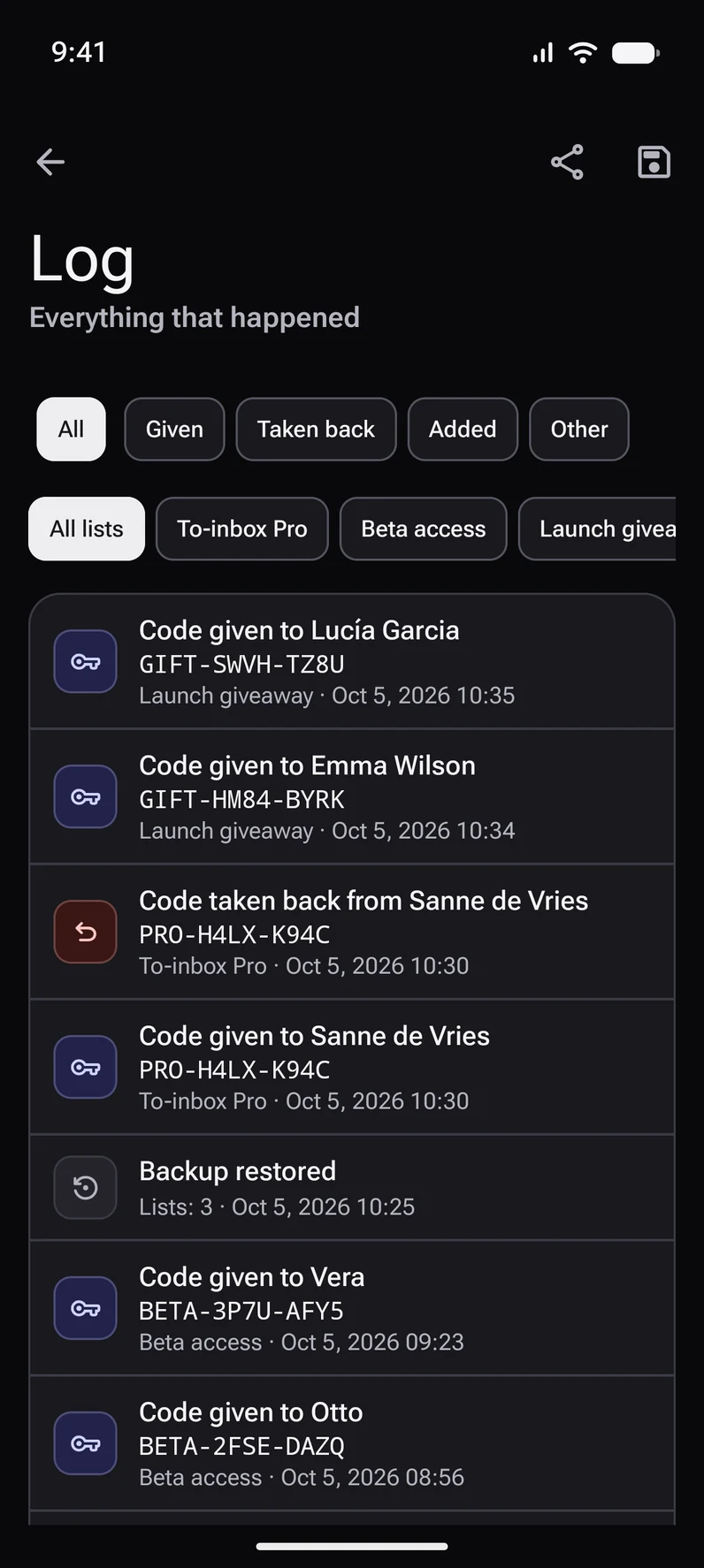
Everything on record
Every code given, taken back or added is in the log, with date and time. Filter per list and share or save it as CSV.
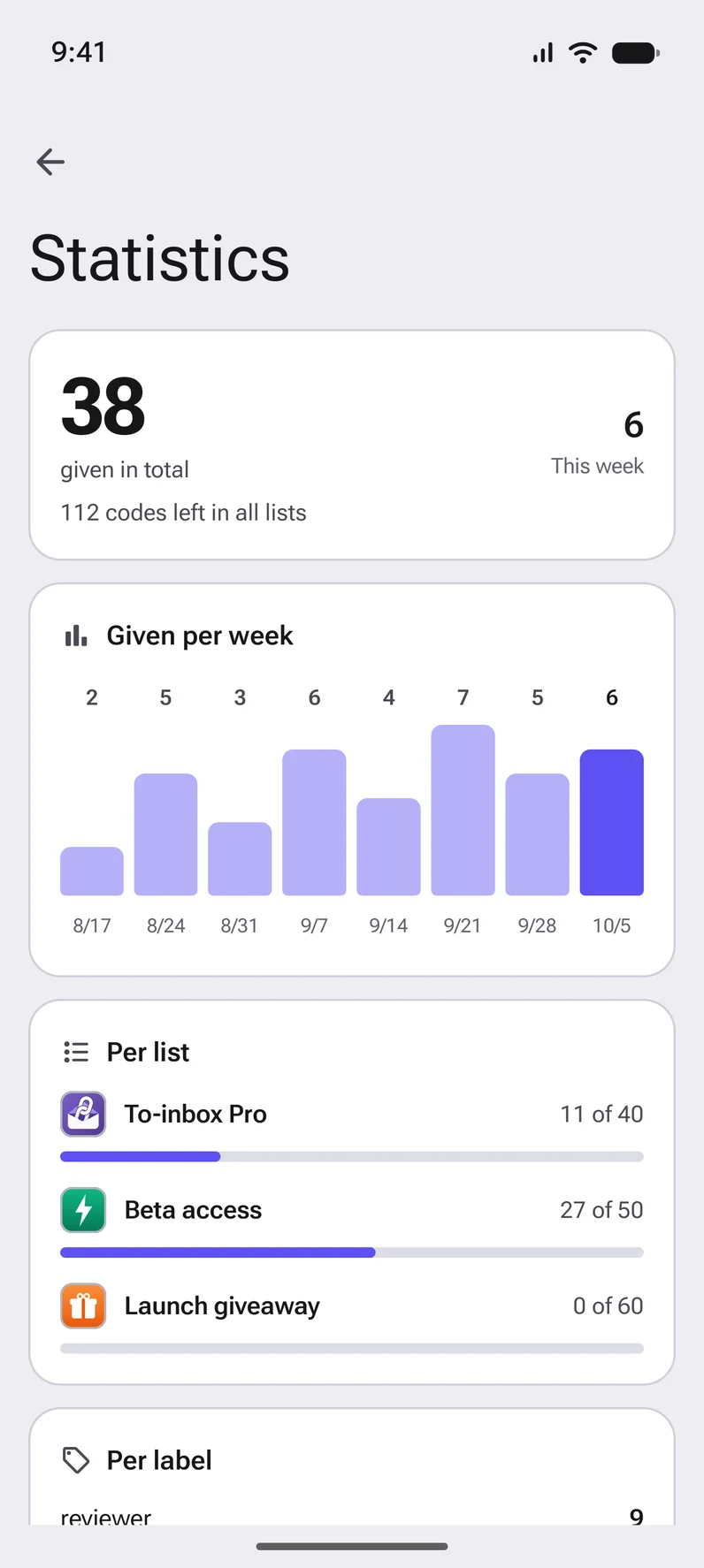
Statistics Pro
With CodeGiver Pro you see how many codes you give out per week, per list and per label.
Free to use, Pro when you need more
Almost everything is free. CodeGiver Pro is a one-time purchase through Google Play, not a subscription.
Free
No account, no ads
- One list of up to 25 codes
- Give, take back, copy and share
- Your own message per language
- Add codes by pasting, from a document or a screenshot
- End date, log and backup
- Notifications, widget, quick tile and app lock
CodeGiver ProPro
One-time purchase, no subscription
- Everything in the free version
- Ten lists instead of one
- Up to 500 codes per list
- Statistics per week, per list and per label
- A label on every code you give out
- A log for codes you received yourself
- Linked to your Google account, also on a new phone
You buy Pro in the app. The price is shown there, in your own currency.
Your codes stay yours
- Lists, codes and names are stored on your phone. The developer never receives them.
- No account, no ads and no analytics. A backup goes only to your own Google account, and you can turn it off.
- The internet is used to fetch an icon from an address you enter yourself, and by Google Play for buying Pro and rating the app.
Questions and answers
Which codes can I use?
Any code you have as text: promo codes for your app, vouchers, license keys, access codes. CodeGiver does not create or check codes; you add the codes you received somewhere else.
Can a code be given out twice?
No. A code that has been given leaves the queue. It only comes back when you take it back yourself. Adding the same code to a list again has no effect.
Where are my codes stored?
On your phone. There is no account and the developer has no server that receives them. If the Android backup is on, a copy goes to your own Google account; you can turn that off in the settings of the app.
What happens when I get a new phone?
With the backup in your Google account your lists come back by themselves. You can also create a backup file and restore it on the new phone. CodeGiver Pro belongs to your Google account, so you do not have to buy it again.
Can I set the end date later?
Yes. You pick an end date when you add codes, and with Edit list you can still set or change it for all codes that have not been given out yet.
Can I also keep track of codes I received myself?
Yes, with CodeGiver Pro. In the menu you find Received codes, a log for codes you got yourself, for example from a developer to try their app. For each code you note the app, the source, the reason, the date and time and, if you like, until when it is valid, and you mark it as used. It is separate from your lists and is included in your backup.
Is CodeGiver Pro a subscription?
No, it is a one-time purchase through Google Play. Without Pro you can keep using the app with one list of up to 25 codes.
Which devices does the app work on?
On phones and tablets with Android 8.0 or newer. The app is available in English, Dutch, Spanish, German and French.
Contact
A question, an idea or something that does not work? Send a message. Your details are only used to answer you.